A Simple Guide to Changing Your NETS/ATM/Debit Card Limits
Follow these easy steps to update your ATM/Debit card's NETS, Withdrawal, and 3rd Party Funds Transfer limits.
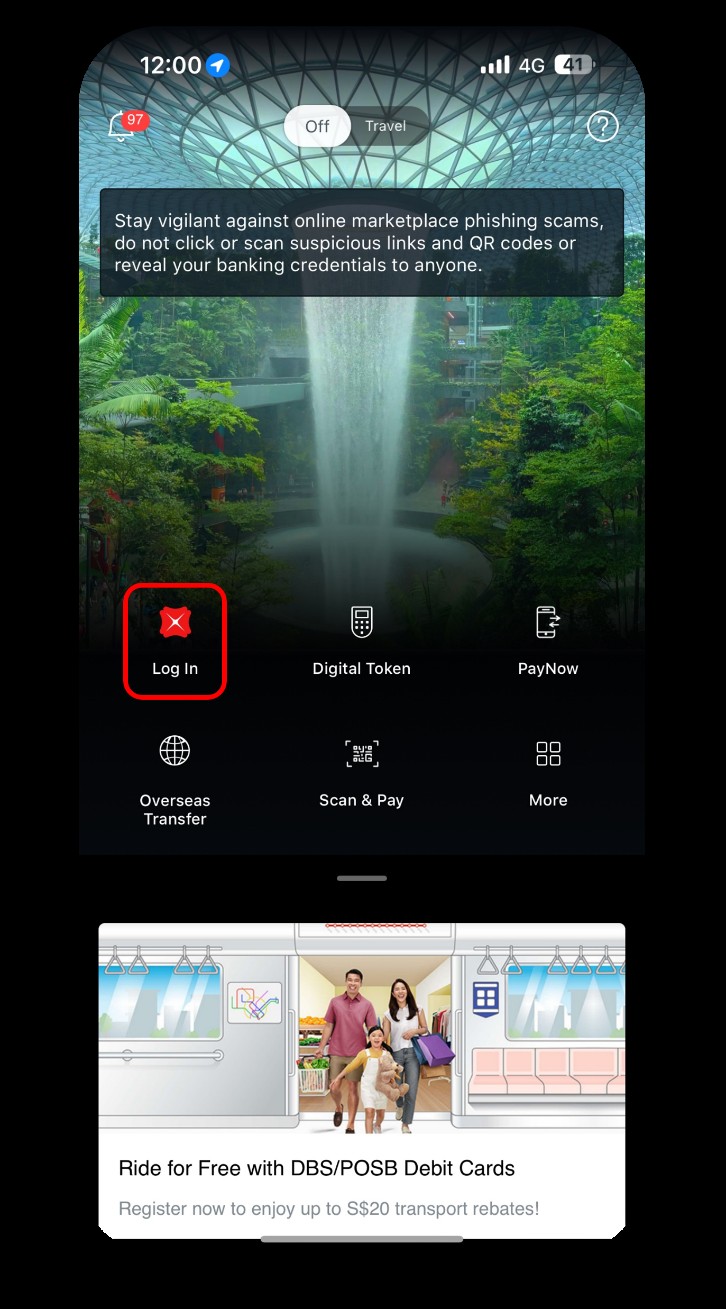
Log In and Navigate to Settings
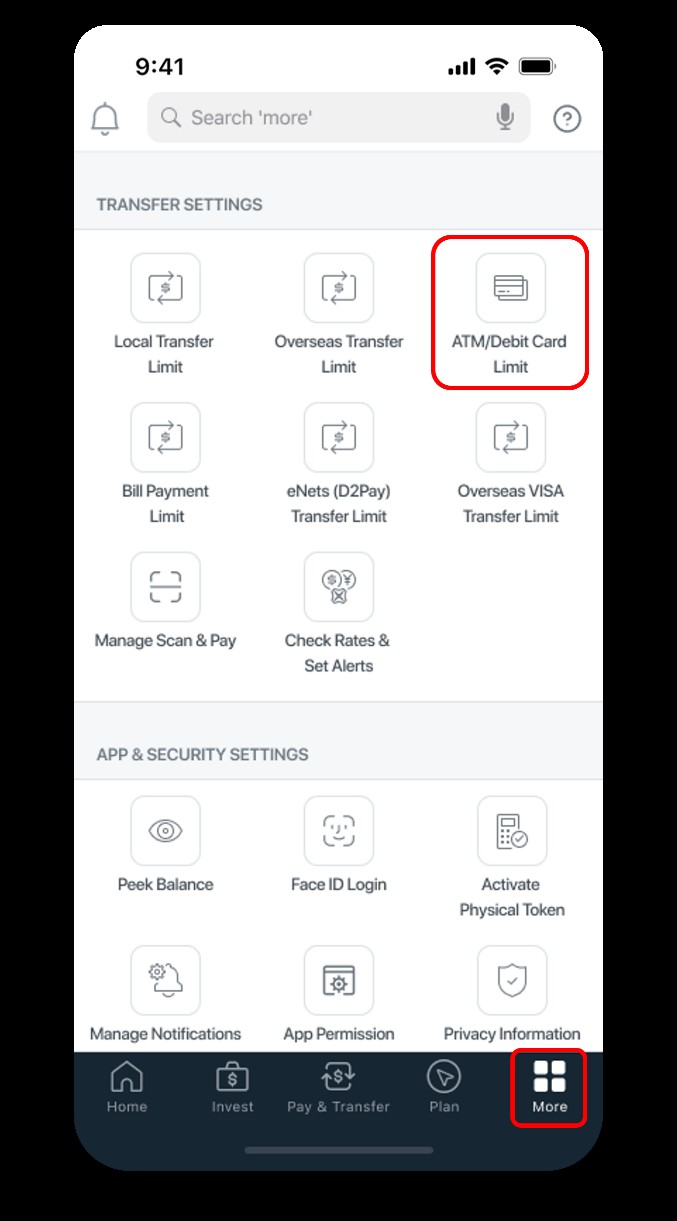
Log in to your digibank mobile app with your Touch/Face ID or User ID & PIN. Once you're in, tap the **More** icon at the bottom right of the screen to access the full menu.
Scroll Down to Card Limits
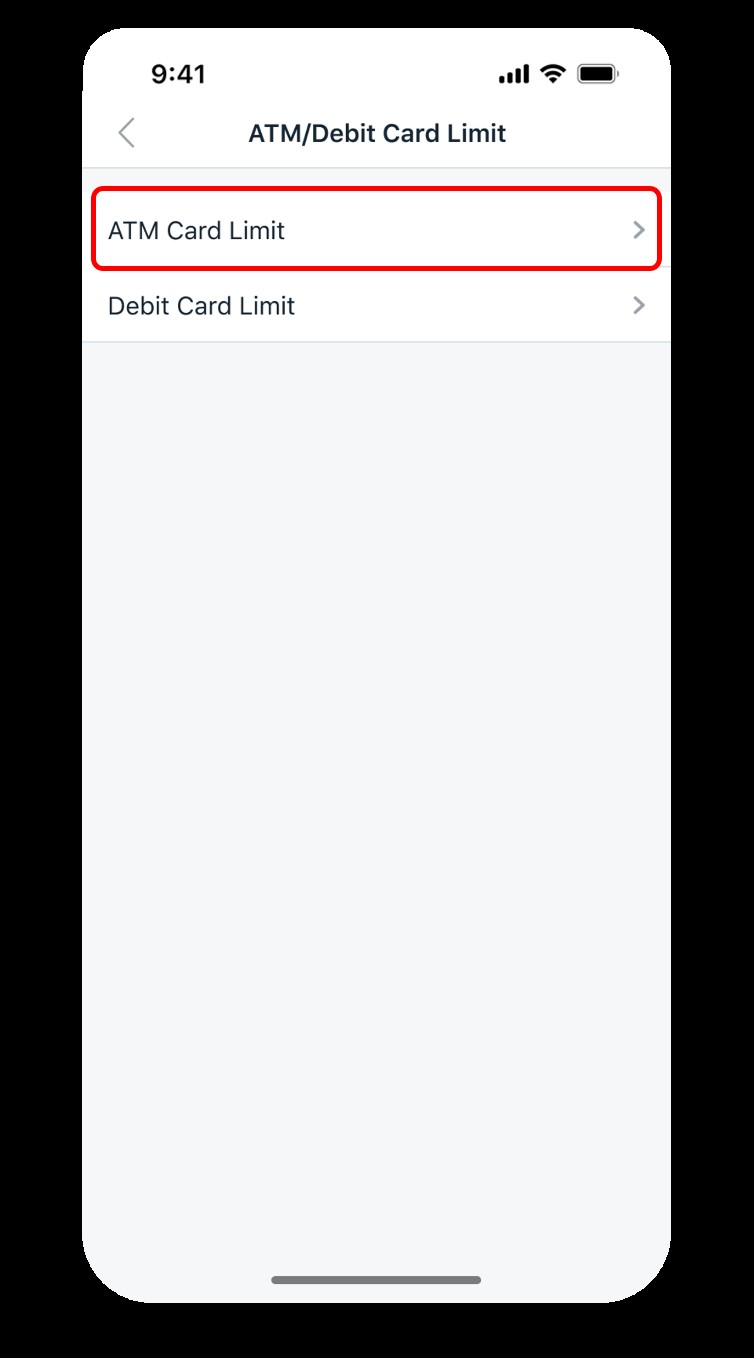
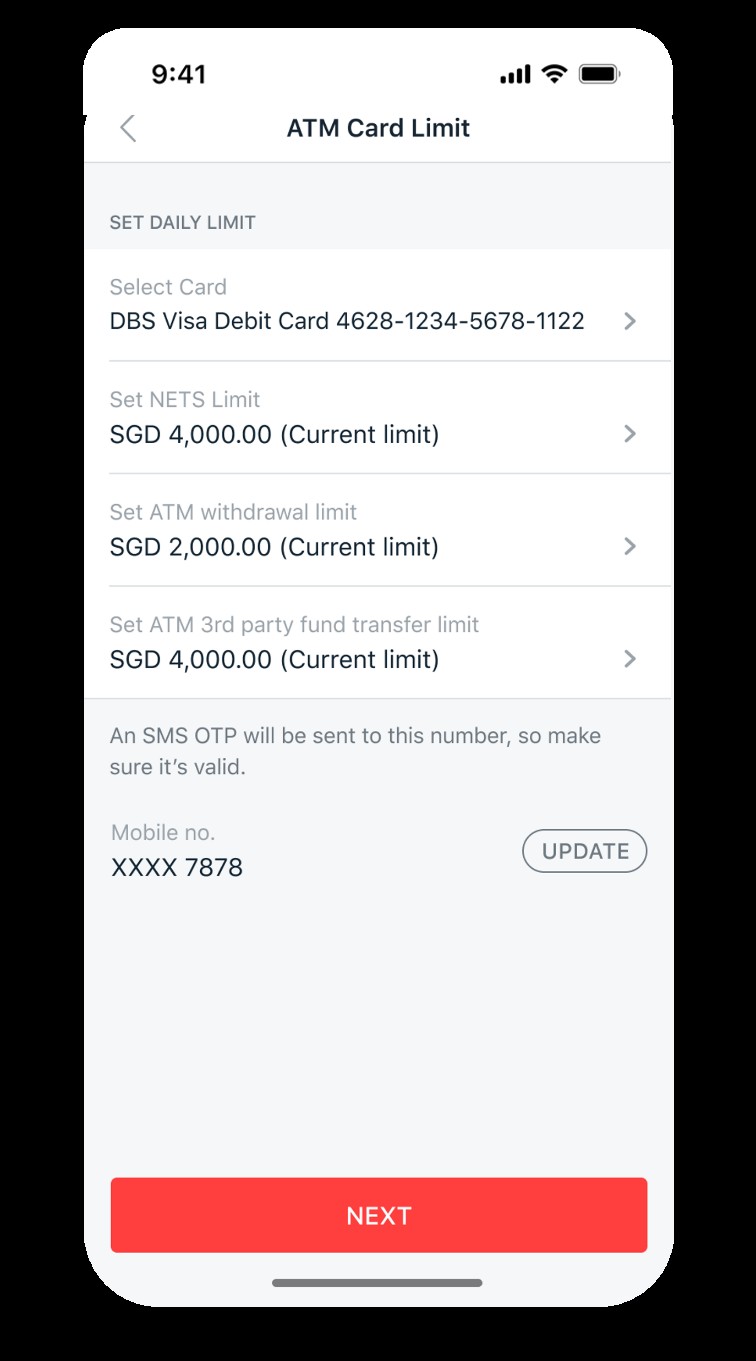
2On the settings screen, tap on **ATM/Debit Card Limit** located under the "TRANSFER SETTINGS" section. Then, on the next screen, tap **ATM Card Limit**.
Adjust the Limits
You will now see a list of different limits you can change. Tap on the specific limit you want to adjust, such as the **NETS Limit** or **ATM withdrawal limit**. Enter the new limit you desire and tap **Update**. You’ll need to verify this change, and an SMS One-Time Password (OTP) will be sent to your registered mobile number or email for verification.
Review and Confirm
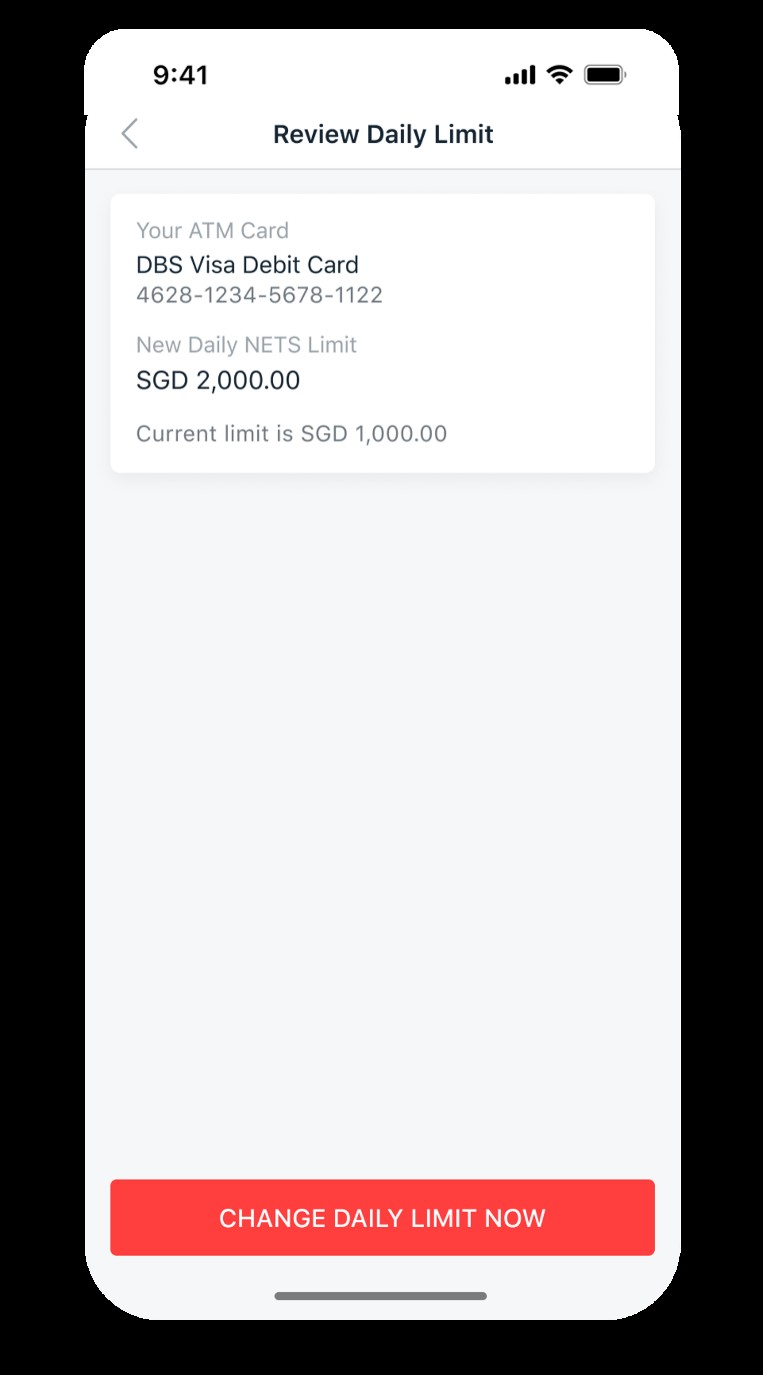
4After entering the new limit, a screen will appear for you to review the changes. The new daily limit will be displayed for your confirmation. If everything looks correct, tap **CHANGE DAILY LIMIT NOW** to confirm the change.
Final Confirmation
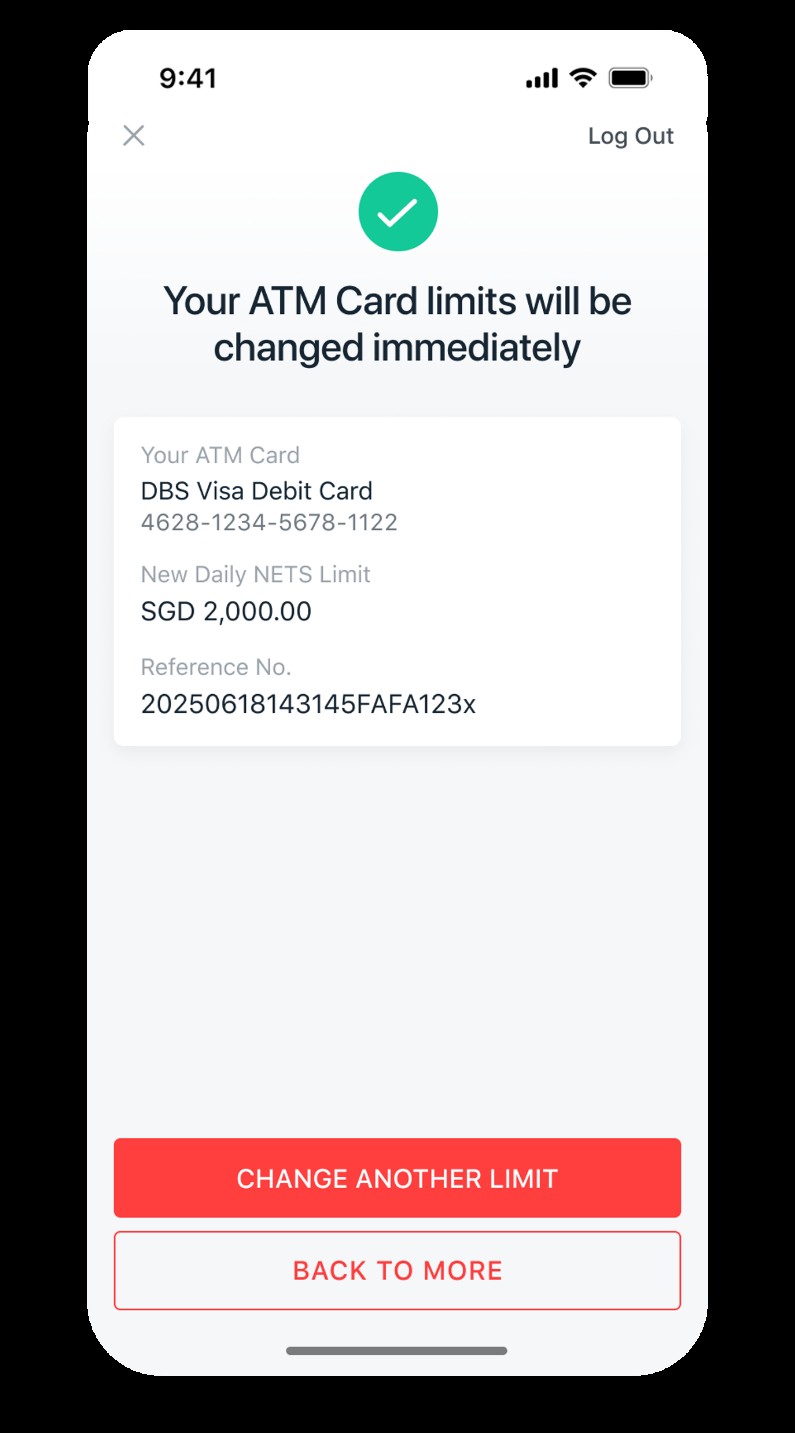
Once you’ve confirmed, a final screen will show that your ATM card limits have been successfully changed. You will also be provided with a reference number for your records. The changes will take effect immediately.
Confirmation of Success
6Your limits will be changed immediately, and you will see a confirmation screen with a green checkmark. A reference number is also provided for your records.