Change Local Funds Transfer Limits

Change your local funds transfer limits easily via digibank.


A step-by-step guide to changing DBS Local Transfer Limit


Step 1: Log In and Find More Settings

Log in to digibank mobile with your Touch / Face ID or digibank User ID & PIN and tap More.

Step 2: Go to Transfer Limits

In the menu, find the Transfer Settings section and tap on Local Transfer Limit.

Step 3: Choose Who You’re Transferring To

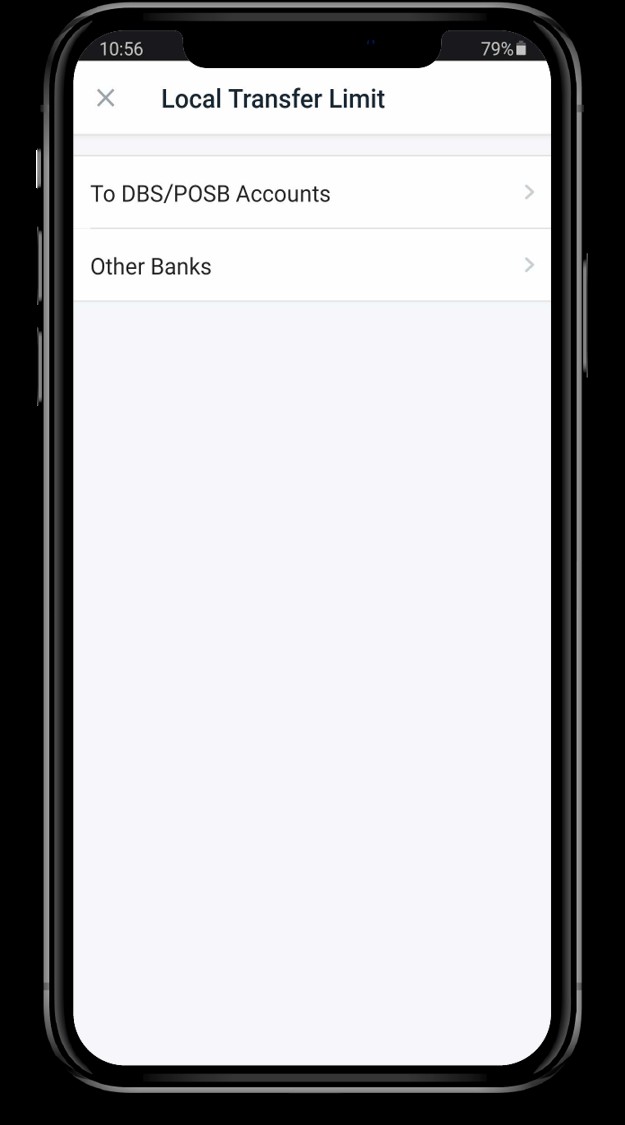
You’ll see different options for where you can send money. Select the type of transfer you want to change, like To DBS/POSB Accounts or To Other Banks.

If you wish to change Funds Transfer limit for PayNow or Scan & Pay transactions, please select To Other Banks .

Step 4: Set the Amount

Your current limit will be shown. Tap on it to enter your new limit. Make sure the amount is within your bank’s maximum allowed limit.

Step 5: Confirm Your Change

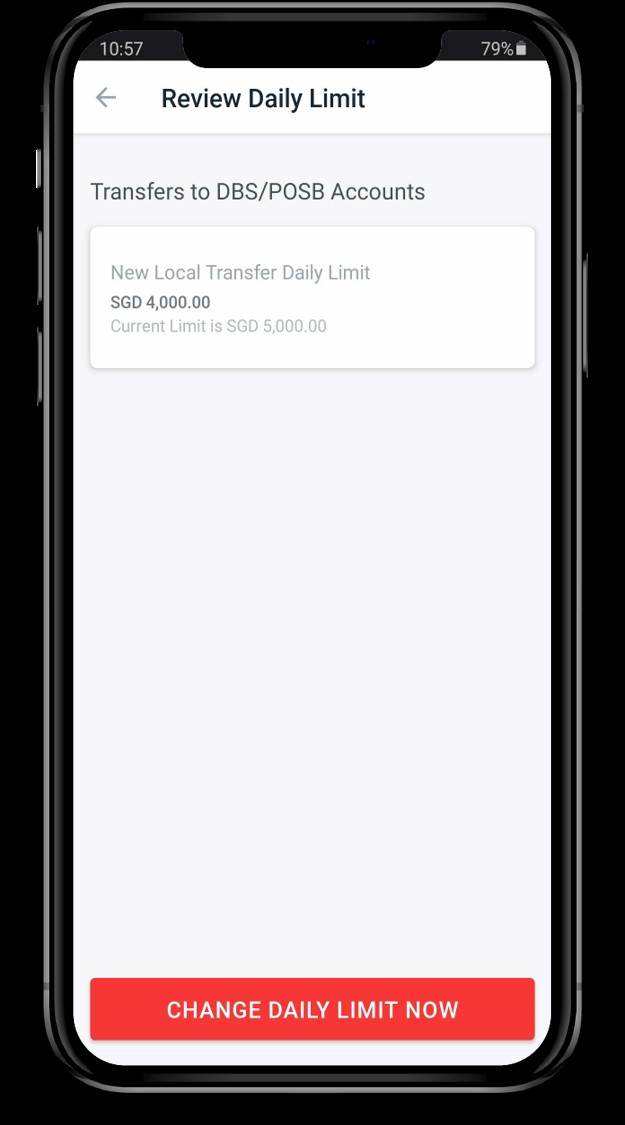
Review your new daily limit and tap Change Daily Limit Now. you’ll need to confirm the change. A security token or a One-Time Password (OTP) will be sent to your phone or Email. Enter it to finalize the update.

The new limit should take effect right away.

A Simple Guide to Change DBS Local Transfer Limit

Follow these easy steps to update your daily transfer limit quickly and securely.
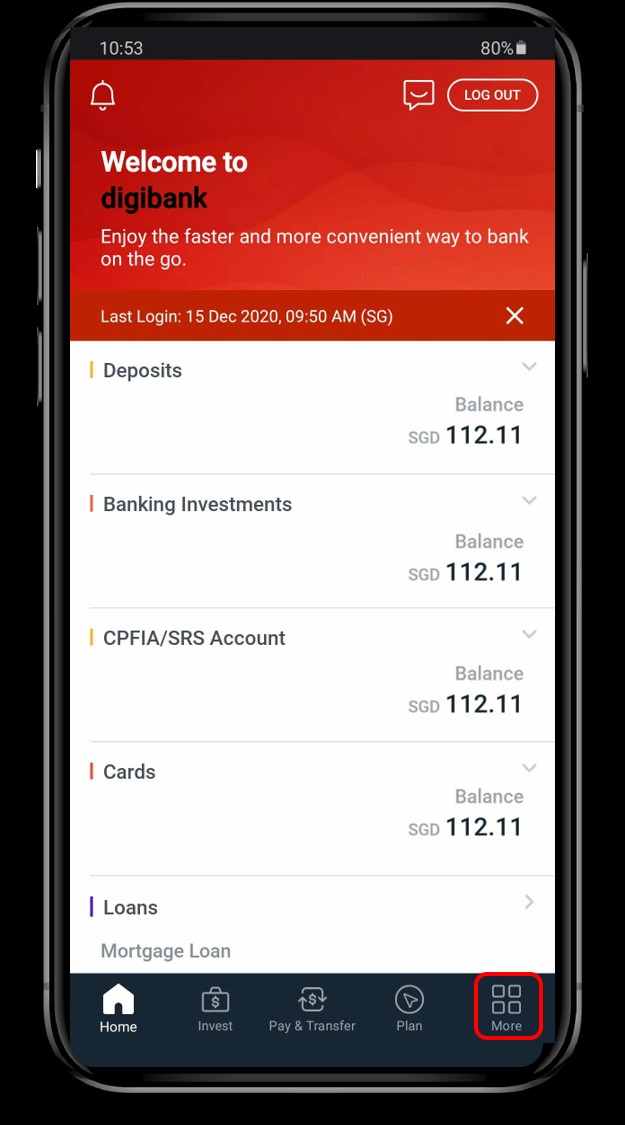
DBS Digibank home screen with More button highlighted.
1

Log In and Find "More"

First, log in to your banking app. Once you’re in, look for the main menu or the More icon at the bottom right of your screen. Tap on it to open the full list of options.

Go to Transfer Limits

2

In the menu, find the Transfer Settings section. Look for and tap on Local Transfer Limit.
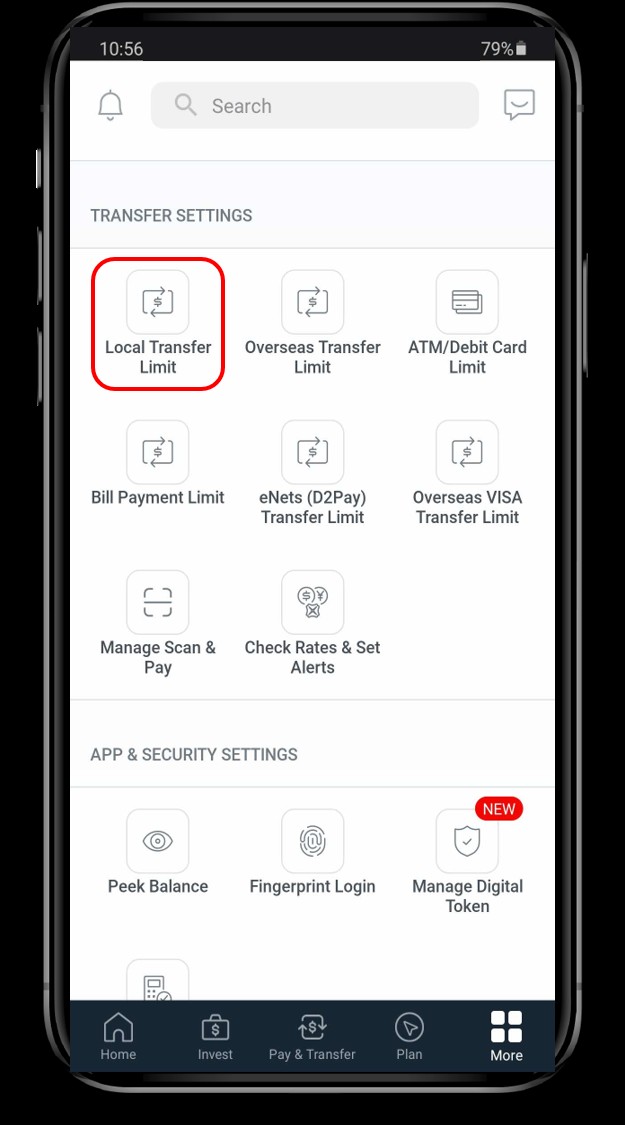
More menu in DBS app with Local Transfer Limit option highlighted.
Local Transfer Limit menu showing options for To DBS/POSB and Other Banks.
3

Choose the Recipient Type

You'll see different options for where you can send money. Select the type of transfer you want to change, such as To DBS/POSB Accounts or To Other Banks.

Adjust the Amount

4

Your current limit will be shown on the next screen. Tap on it to enter your new desired limit. Make sure the amount you choose is within your bank’s maximum allowed limit.
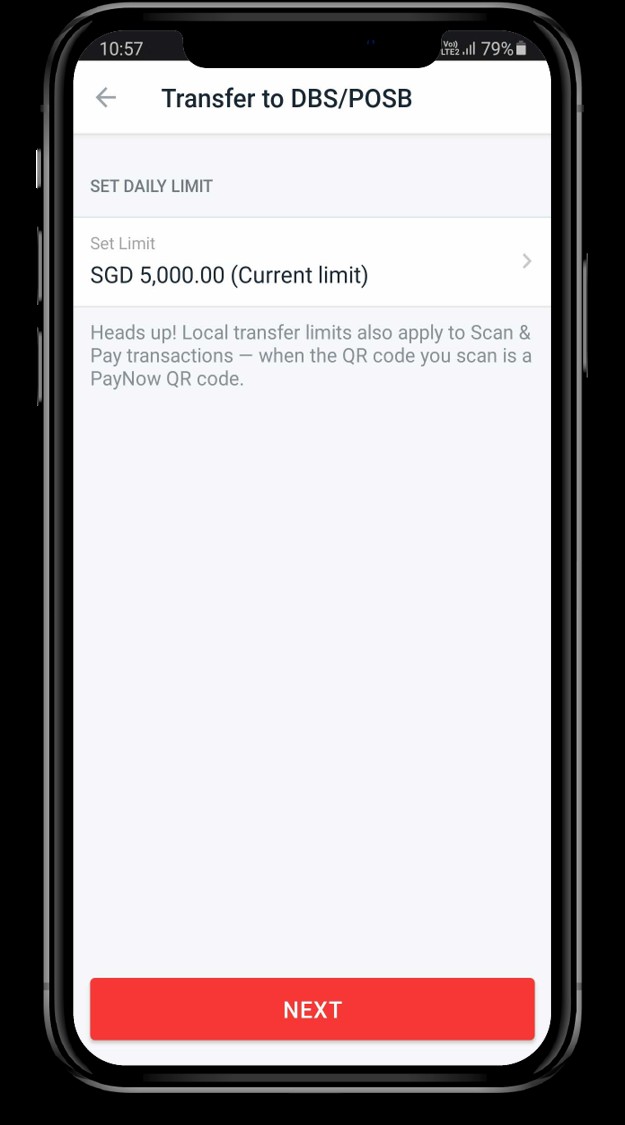
Screen to set daily limit with current limit displayed.
Review Daily Limit screen with a button to change the limit.
5

Review and Finalize

Finally, you’ll need to review the changes on this screen and tap the button to confirm. A security token or a One-Time Password (OTP) will be sent to your phone or email. Enter it to finalize the update. The new limit should take effect right away.

Confirmation of Success

6

Once the OTP is entered, you will see a confirmation screen with a green checkmark. This means your new local transfer limit has been successfully changed.

Confirmation screen showing the local transfer limit has been changed.
Step 1 of 6